Teacher's Guide: Homework Kiosk
Welcome! This guide will help you use the Homework Kiosk in your classroom. No technical experience is required.
Who Is This Guide For?
This guide is written for adults supervising students in a physical classroom, including:
- Classroom teachers
- Teacher's aides and assistants
- Substitute teachers
- Parent volunteers
- Any adult helping students use the kiosk during class time
This guide is not intended for:
- Students (they don't need a guide—the app walks them through everything)
- Remote tutors or online instructors
- Parents helping children at home
Table of Contents
- Introduction
- Understanding the Basics
- Setting Up for the First Day
- Guiding Students Through Sign-Up
- Daily Use: Signing In & Doing Homework
- Helping Students (Teacher Assistance)
- Troubleshooting Common Issues
- Frequently Asked Questions
- Quick Reference Card
1. Introduction
What Is the Homework Kiosk?
The Homework Kiosk is a simple web application that lets students complete and submit their homework on a shared classroom computer. It's designed specifically for elementary students (grades 3-7) and is easy for young children to use independently.
Why Use This App?
- Simple for students: Large buttons, colorful design, and picture-based sign-in
- Minimal supervision needed: Students can work through the process on their own
- Secure: Each student has their own secret PIN that only they know
- No passwords to remember: Students sign in by picking their animal picture and entering a 4-digit number
- Automatic sign-out: After submitting homework, the app automatically signs out to protect the next student's privacy
What You'll Need
- A computer, laptop, or tablet with internet access
- A modern web browser (Chrome, Safari, Firefox, or Edge)
- Your classroom's Class Code (provided by your school)
2. Understanding the Basics
The Student Journey
Here's what students experience when using the kiosk (after you've set it up with your Class Code):
Sign Up (first time) or Sign In → Do Homework → Submit → Done!
First-time students will register for a profile by:
- Clicking Sign Up
- Entering their name
- Picking an animal avatar (their picture)
- Receiving a secret 4-digit PIN
Returning students will:
- Clicking Sign In
- Finding and clicking their animal picture
- Entering their 4-digit PIN
- Completing and submitting their homework
Key Terms
| Term | What It Means |
|---|---|
| Homework | In this app, "homework" means a single homework assignment. For example, "today's homework" refers to one specific assignment with its own title, questions, and due date. |
| Class Code | A special code for your classroom (like ROOM101). All students in your class use the same code. |
| Avatar | The animal emoji picture a student chooses to represent themselves. Students sign in by clicking their avatar. |
| PIN | A secret 4-digit number (like 7293) that only the student knows. This keeps their work private. |
What Can Students Do vs. What Can Teachers Do?
Students can:
- Register for their own profile (once the kiosk is set up)
- Sign in and complete homework
- Resubmit homework if they need to make changes
Teachers can:
- Help sign a student in if they're having trouble
- Reset a student's PIN if they forget it
- Remove a student's profile if needed
Note: You don't need a separate login. Teachers help students by entering the Class Code when prompted.
3. Setting Up for the First Day
Preparing the Computer
- Open a web browser (Chrome, Safari, Firefox, or Edge)
- Go to the app's web address (provided by your school)
- You should see a colorful welcome screen asking for a Class Code
Tip: Consider bookmarking the page or adding it to the home screen so students can find it easily.
Your Class Code
Your school or IT administrator will provide you with a Class Code. Common examples include:
- ROOM101 - Grade 4 classroom
- ROOM102 - Grade 4 classroom
- ROOM201 - Grade 5 classroom
Important: Keep your Class Code private! It acts as your teacher credential for helping students (resetting PINs, signing them in, etc.). Do not share it with students or write it on the board.
Setting Up the Kiosk
Before students arrive, you should "unlock" the kiosk for your classroom:
- Enter your Class Code on the welcome screen
- Click Continue
- The kiosk is now ready for students to sign up or sign in
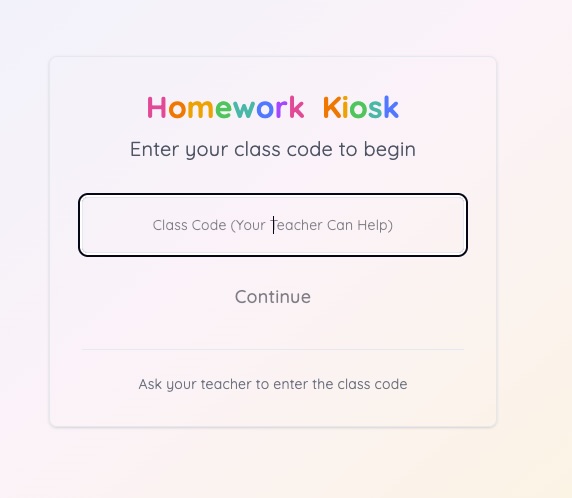 The welcome screen where you enter your Class Code. Note the message at the bottom reminding students to ask their teacher.
Once the kiosk is set up, students can use it without needing the Class Code. The kiosk remembers your classroom until the browser is closed or cleared.
What to Tell Your Students Before They Start
Before the first student uses the kiosk, explain:
- "You'll pick an animal to be your picture" - They'll choose from 30 fun animal emojis
- "You'll get a secret 4-digit number called a PIN" - Like a secret code only they know
- "Remember your PIN!" - They can write it down somewhere safe at home, but shouldn't share it with classmates
- "Click each box to see your PIN number" - The numbers are hidden until they click, so no one can peek
- "When you're done, the computer will sign you out automatically" - This protects the next student
4. Guiding Students Through Sign-Up
When a student uses the kiosk for the first time, they'll register for a profile. Here's what happens:
Reminder: Make sure you've already set up the kiosk with your Class Code before students begin (see Setting Up the Kiosk).
Step 1: Choose Sign Up
The student sees a screen with two options. If this is their first time, they click Sign Up (not Sign In).
Step 2: Enter Their Name
The student types:
- Their first name
- Their last name
Then clicks Continue.
Note: Two students in the same class cannot have the exact same first AND last name. If there are two "John Smiths," one might use a nickname or middle name.
Step 3: Pick an Avatar
A grid of 30 animal emojis appears. The student clicks on the animal they want to represent them. Options include:
- Lion, Dog, Cat, Bear, Fox, Panda, Koala
- Owl, Penguin, Rabbit, Tiger, Turtle, Fish
- Butterfly, Bee, Unicorn, Dragon, and more!
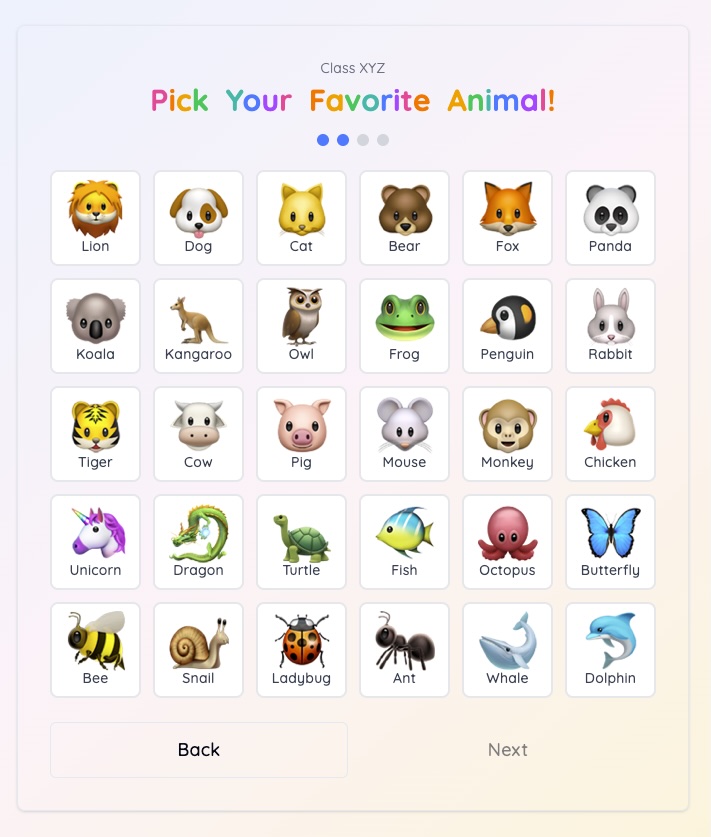 Students choose from 30 colorful animal emojis. The selected avatar gets a blue border.
The student clicks Continue after picking their animal.
Step 4: Receive Their PIN
This is the most important step! A screen shows 4 boxes containing their secret PIN.
How the PIN reveal works:
- Each box shows "?" until the student clicks it
- When clicked, the number appears for 1 second, then hides again
- This prevents other students from seeing the PIN over their shoulder
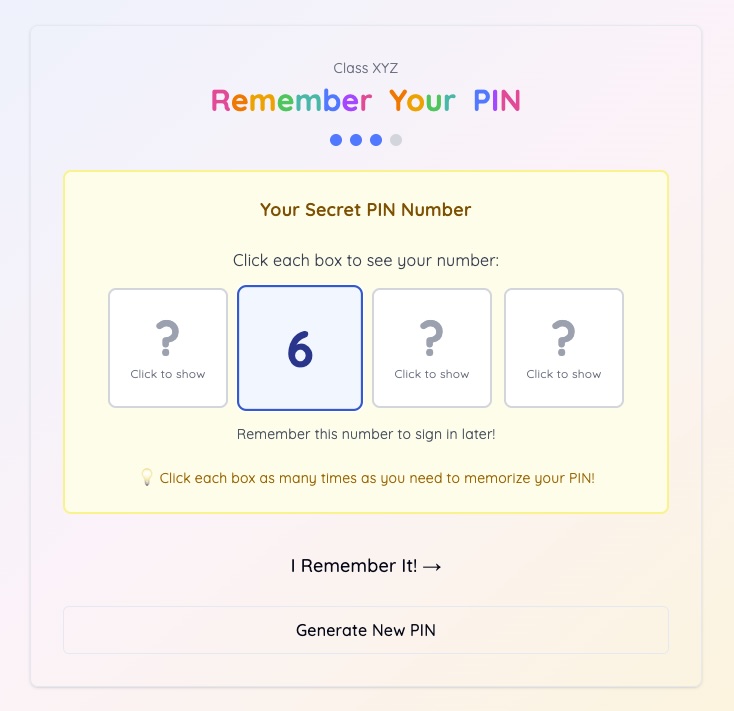 Four clickable boxes with "?" marks. Students click each box to briefly reveal their secret digit.
What to tell the student:
- "Click each box one at a time to see your number"
- "Try to remember it! Say it quietly to yourself a few times"
- "If you can't remember it, click Generate New PIN to get a different number"
- "When you've memorized it, click I'll Remember My PIN"
Tip: Have students write their PIN on a small card to take home. Remind them to keep it private!
Step 5: Confirmation
The student sees a success message and can now start their homework.
5. Daily Use: Signing In & Doing Homework
Signing In (Returning Students)
- They click Sign In (not Sign Up)
- A grid of avatars appears showing all students in the class
- The student finds and clicks their animal picture
- A PIN entry box appears
- The student types their 4-digit PIN and clicks Sign In
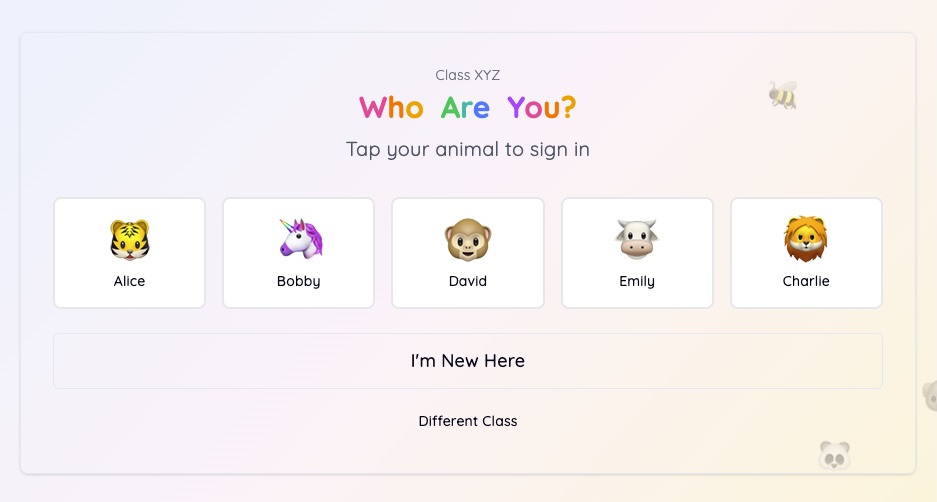 Students find their animal picture in the grid. Each card shows the avatar and the student's name.
Note: If a student enters the wrong PIN 3 times, they'll need your help. See the Helping Students section.
Viewing Homework
After signing in, students see their homework assignment:
- Title of the assignment
- Description explaining what to do
- Due date
- Questions to answer
Answering Questions
The app supports three types of questions:
| Question Type | What Students Do |
|---|---|
| Multiple Choice | Click the circle next to their answer |
| Text Answer | Type their answer in the text box |
| Number Answer | Type a number in the box |
Each question shows how many points it's worth.
Submitting Homework
When finished:
- The student clicks the Turn In button at the bottom
- A celebration screen appears with stars and a checkmark
- After 10 seconds, the app automatically signs them out
- The kiosk is ready for the next student
Note: Students can click Sign Out Now if they don't want to wait 10 seconds.
If a Student Already Submitted
If a student signs in and has already submitted their homework, they can:
- Review their answers to see what they wrote
- Make changes and resubmit if needed
The most recent submission is what counts.
6. Helping Students (Teacher Assistance)
Sometimes students need help. The app has built-in features for teachers.
Accessing the Help Menu
On the Sign In page (where students pick their avatar), there's an "I Need Help" button. Students can click this to get assistance.
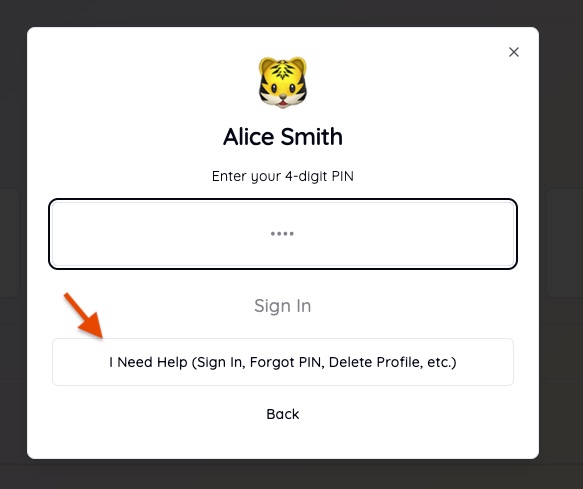 The "I Need Help" button appears at the bottom of the sign-in screen. Clicking it reveals the three help options.
Three options appear:
- Help Me Sign In
- I Forgot My PIN
- Delete My Profile
Option 1: Help Me Sign In
Use this when a student can't sign in and you want to sign them in directly.
How it works:
- The student clicks "Help Me Sign In"
- The student selects their avatar
- You (the teacher) enter the Class Code to verify your identity
- The student is signed in without needing their PIN
When to use: A young student is frustrated or confused and you want to help them get started quickly.
Option 2: Reset a Forgotten PIN
Use this when a student has completely forgotten their PIN.
How it works:
- The student clicks "I Forgot My PIN"
- The student selects their avatar
- You enter the Class Code to verify your identity
- A new 4-digit PIN is generated
- The student sees their new PIN (using the click-to-reveal boxes)
- Have the student memorize the new PIN before continuing
When to use: A student says "I don't remember my PIN at all" and has tried multiple times.
Option 3: Delete a Student Profile
Use this carefully! It permanently removes a student and all their homework submissions.
How it works:
- Click "Delete My Profile"
- Select the student's avatar
- You enter the Class Code
- A confirmation dialog appears
- Click Delete to confirm
When to use:
- A student created a duplicate profile by accident
- A student has left the class
- You need to start fresh with a student's profile
7. Troubleshooting Common Issues
"I Forgot My PIN!"
Solution: Use the PIN reset feature (see Option 2 above).
Prevention tips:
- Have students write their PIN on a card to keep at home
- Some teachers keep a private list of student PINs (in a secure location)
"I Can't Find My Avatar!"
Possible causes:
- The student is looking in the wrong class (wrong Class Code)
- The student hasn't signed up yet
- The student forgot which animal they picked
Solution:
- Double-check the Class Code matches your classroom
- Ask the student: "What animal did you choose?" and help them look
- If they never signed up, have them click Sign Up instead
"It Says My Name Is Already Taken!"
Cause: Another student with the same first and last name already signed up.
Solution:
- Use a nickname (e.g., "Mike" instead of "Michael")
- Add a middle initial (e.g., "John M Smith")
- Use a different spelling if appropriate
"My Homework Won't Submit!"
Possible causes:
- Not all questions are answered
- Internet connection was lost
Solution:
- Check that every question has an answer
- Look for any questions highlighted in red
- If the internet is down, wait and try again
- Refresh the page (but answers may need to be re-entered)
"The Screen Looks Weird!"
Possible causes:
- Browser is zoomed in or out
- Old browser version
Solution:
- Press Ctrl + 0 (Windows) or Cmd + 0 (Mac) to reset zoom
- Try a different browser
- Clear browser cache if problems persist
"The Student Got Signed Out Too Soon!"
Cause: Sessions expire after 30 minutes of inactivity.
Solution: Have the student sign in again. Their previous homework answers are saved if they submitted.
8. Frequently Asked Questions
Can students redo their homework?
Yes. If a student signs in after submitting, they can review and change their answers, then resubmit. The most recent submission is what gets saved.
What if two students have the same name?
The app doesn't allow two students in the same class to have the exact same first AND last name. Solutions:
- Use a nickname
- Include a middle initial
- Use a slightly different spelling
How long do students stay signed in?
Students stay signed in for 30 minutes of activity. After submitting homework, they're automatically signed out after 10 seconds. If they walk away without submitting, they'll be signed out after 30 minutes of no activity.
Where does the homework data go?
Homework submissions are saved to a secure database. Teachers and administrators can access this data through the school's systems. Data is stored securely and is not shared with third parties.
Can students sign in from home?
That depends on your school's setup. If the app is accessible from the internet (not just the school network), students could potentially access it from home with the Class Code and their PIN. Check with your IT administrator.
What if the internet goes down?
The app requires an internet connection. If the internet is down:
- Wait for it to come back
- Have students complete homework on paper as backup
- They can submit later when the connection is restored
Can students see each other's work?
No. Each student's work is private. They need their personal PIN to access their profile, and the auto-sign-out feature prevents the next student from seeing previous work.
What browsers work best?
The app works on all modern browsers:
- Google Chrome (recommended)
- Safari
- Firefox
- Microsoft Edge
Avoid Internet Explorer, which is outdated.
9. Quick Reference Card
Print this page and keep it near the kiosk for quick reference.
Teacher Setup (Do This First)
1. Enter your Class Code on the welcome screen
2. Click "Continue"
3. Kiosk is now ready for students
Student Flow (First Time)
1. Click "Sign Up"
2. Enter first and last name
3. Pick an animal avatar
4. View and memorize PIN (click boxes to reveal)
5. Click "I'll Remember My PIN"
6. Complete homework
7. Click "Turn In"
8. Auto sign-out in 10 seconds
Student Flow (Returning)
1. Click "Sign In"
2. Click your avatar
3. Enter 4-digit PIN
4. Complete homework
5. Click "Turn In"
6. Auto sign-out in 10 seconds
Teacher Help Options
| Problem | Solution |
|---|---|
| Student can't sign in | Use "Help Me Sign In" + Class Code |
| Student forgot PIN | Use "I Forgot My PIN" + Class Code |
| Need to remove student | Use "Delete My Profile" + Class Code |
Key Things to Remember
- Class Code is your teacher credential—keep it private!
- PIN is unique to each student (4 digits)
- Avatar is how students identify themselves visually
- Students can resubmit homework anytime
- Sessions expire after 30 minutes of inactivity
- Auto sign-out happens 10 seconds after submitting
Your Class Information
| Field | Value |
|---|---|
| Class Code | _________________ |
| App URL | _________________ |
| IT Contact | _________________ |
This guide is for the Homework Kiosk application. For technical support, contact your school's IT administrator.